Posts

Inline Edit And Custom Lightning Components
Image
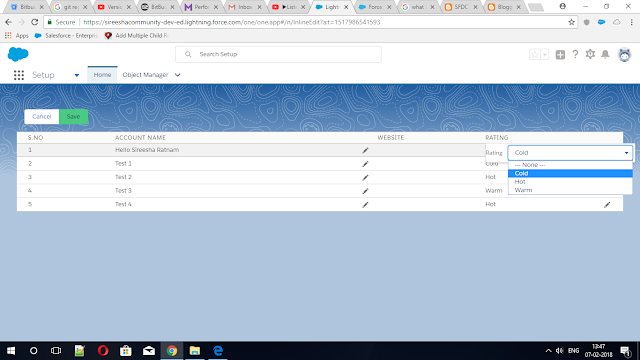
Inline Editing lets users quickly edit field values, right on a record's detail pages. Below are the Custom Lightning Components support Inline Editing. Apex Controller: public class InlineEditController {      @AuraEnabled     public static List <account> fetchAccount() {         List <Account> lstOfAccount = [select id, Name, Rating, website from account LIMIT 5];         return lstOfAccount;     }     @AuraEnabled     public static List <account> saveAccount(List<Account> lstAccount) {         update lstAccount;         return lstAccount;     }     @AuraEnabled     public static List < String > getselectOptions(sObject objObject, string fld) {         system.debug('objObject --->' + objObject);         system.debug('fld --->' +...

Salesforce Lightning ListView Component With Horizontal and Vertical Scrollbar

Image
ListView Allows you to see a filtered list of records such as Accounts, Contacts or Custom Objects. Here is the Custom Lightning Component that displays a list of records with specified fields. We can also add scrollbar by using Lightning Design System-Scrollable (make a containing box scrollable when scrolling is available). Apex Controller: public class CustomListViewController {     @AuraEnabled         public static List<Account> accountListView(){          List<Account> accountList= [Select Name,AccountNumber,Site,AccountSource,Active__c,AnnualRevenue,CleanStatus,common1__c,common2__c,Concatinate__c from Account];         return accountList;         } } Lightning Component: <aura:component Controller="CustomListViewController" implements="force:appHostable,flexipage:availableForAllPageTypes">     <aura:attribute name="account" Type="Account" ...

Create Records Using Lightning Components

Image
In this post, we will focus on how to create records of any SObject Type(SObject can be Standard and Custom) using Lightning Component. Lightning Component: <aura:component controller="CreateAnAccount"                 implements="force:appHostable,flexipage:availableForAllPageTypes,flexipage:availableForRecordHome,                             force:hasRecordId,forceCommunity:availableForAllPageTypes"                 access="global" >       <ltng:require styles="/resource/bootstrap/css/bootstrap.min.css"                   scripts="/resource/bootstrap/js/jquery.js,/resource/bootstrap/js/bootstrap.min.js"/>     <aura:attribute name="account" type="Account" default="{'sobjectType': 'Account',               ...

Integrating Visualforce And GoogleCharts

Image
Google Charts is a very powerful, free javascript library that can be used to produce a wide variety of colorful and useful charts, from pie charts to histograms. Combined with Visuaforce, the  Google Charts can offer more flexibility and distribution potential than using a dashboard. Since the charts are generated through a URL, the visualizations can be shared and embedded wherever images are permitted. In this post, we will focus on combining Visualforce to Google Charts.Below is an example, Visualforce Page: <apex:page controller="Goal" sidebar="true" showHeader="true" showChat="true">      <apex:includeScript id="a" value="https://www.google.com/jsapi" />     <div id="chartBlock" />     <script type="text/javascript">     google.load('visualization', '1.0', {'packages':['corechart']});     google.setOnLoadCallback(initCharts);     func...

QuickBooks Online SignUp

Image
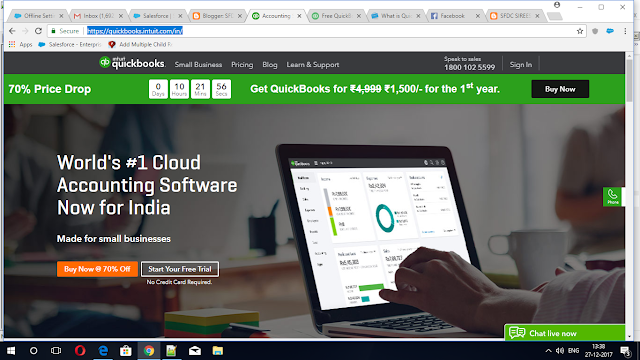
QuickBooks is an accounting software program used to manage sales and expenses and keep track of daily business transactions. You can use it to invoice customers, pay bills, generate reports for planning and tax filing, and more. The QuickBooks product line includes several solutions that work great for anyone from a solopreneur to a mid-sized business. Inorder to get quickBooks Account follow the below steps Step 1: To get Your Free Trial Account for 30 days please navigate to  QuickBooks Free Trial Account . Step 2: Click on Start Your Free Trial button . Step 3: Fill the details. Step 4: Then you will get like this Step 5: If you want to create records for Invoices, Estimate, Pay Bills etc click on plus symbol.

Google To Salesforce Integration

Image
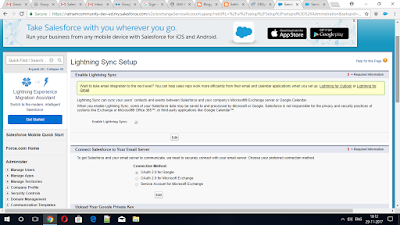
This is going to walk you through the necessary steps to Integrate Google with Salesforce. Step 1: From the Salesforce setup page Make sure to enable Lightning Sync and choose your connection method: OAuth 2.0 for Google. Step 2: From your google cloud platform console Navigate to API Manager Step 3: Generate private Key For Service Account. Step 4:From your google admin console Navigate to Security / Advanced Settings  / Manage API Access When you are in , from the manage API clint access , you can add an entry to authorize your client. 1) In Client Name enter the Service Account Clint Id you previously copied at the end of step 2 2) In API Scopes , enter these URLs, separated by a coma : https://www.google.com/m8/feeds https://www.googleapis.com/auth/calendar.readonly https://www.googleapis.com/auth/contacts.readonly 3) Authorize your clint to access these APIs Step 5: you will have to import the JSON Key file you generated in step ...

Setting Up Gmail For Salesforce In Lightning

Image
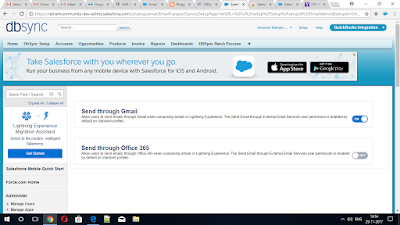
This is going to walk you through the necessary steps to get your Gmail account synced up with Salesforce and install the chrome extension that allows you to log emails and events from Gmail into Salesforce. Step 1 : Navigate to  Setup . Step 2: In Setup go to" Send through external Email service " Then Enable " Send through Gmail " option. Step 3: In Setup go to  Email To Salesroce  Then check Active . Step 4 :Go to Enhanced Email Then  Enable it. Step 5:Go to Lightning for Gmail Then Enable " Enable Lightning for Gmail " and  " Enable Enhanced Email with Lightning for Gmail " Enable Enhanced Email with Lightning for Gmail Step 6: Click on PRODUCTION. Step 7 :Click On "Ädd Extention".